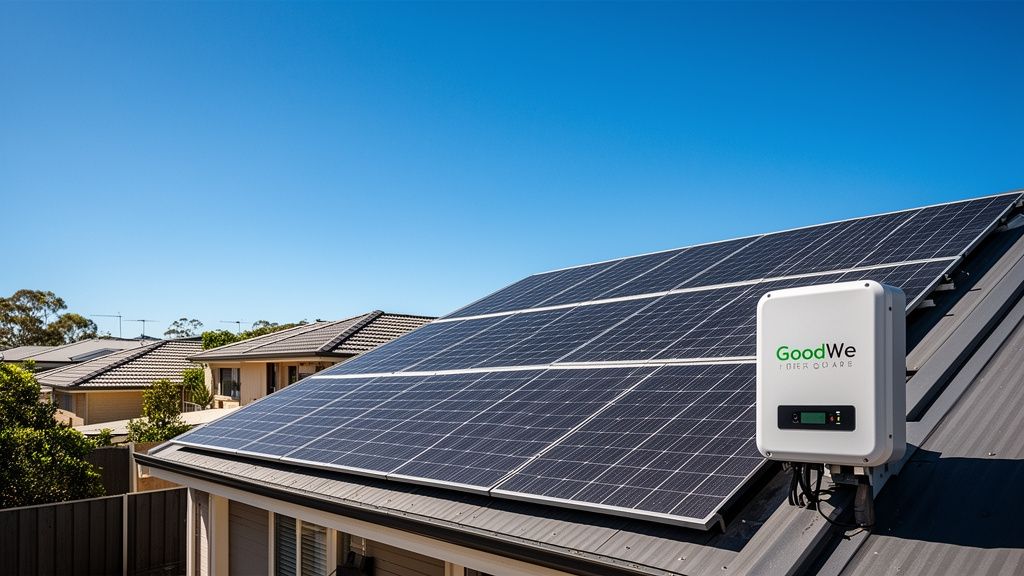
TL;DR: GoodWe inverters are a popular choice for Australian solar setups. Proper installation by an accredited electrician is essential, and owners should understand how to monitor their system and interpret common fault indicators. GoodWe offers a standard warranty, typically extendable, which covers manufacturing defects but requires adherence to installation guidelines for validity.
What Should You Expect from Your GoodWe Inverter Setup in Australia?
Setting up a GoodWe inverter in Australia involves a precise process carried out by an accredited solar electrician to ensure safety, performance, and compliance with local regulations. Your inverter connects your solar panels to your home's electrical system and the grid, converting the DC electricity from the panels into usable AC power. The installation includes mounting the inverter, wiring both the DC input from the panels and the AC output to your switchboard, and configuring its operating parameters to suit Australian grid standards. A quality installation guarantees the inverter runs efficiently, maximising your solar energy production and contributing to system longevity.
Pre-Installation Checks and Placement
Before the physical installation, your solar installer assesses your property for the best inverter placement. This involves considering factors such as protection from direct sunlight and extreme weather, adequate ventilation, and proximity to the main switchboard and solar panel array. GoodWe inverters operate best in cool, dry environments, so shaded or sheltered locations like garages or beneath eaves are often ideal. The installer also checks the structural integrity of the mounting surface and ensures all necessary electrical protections, like DC and AC isolators, are in place and easily accessible. They confirm the inverter model matches your solar panel array's specifications, preventing potential performance issues down the track.
Commissioning Your GoodWe System
Once physically installed and wired, the commissioning phase begins, which involves powering up the inverter and configuring its software. Your electrician connects the inverter to your home's Wi-Fi network (if applicable) and sets up the monitoring platform, allowing you to track your system's performance via an app or web portal. During commissioning, they verify correct voltage and current readings, check for any initial fault indicators, and ensure reliable communication with the grid. They also walk you through the basic operation of your inverter, explain how to access monitoring data, and advise on what to look for regarding normal operation versus potential issues. This final step confirms the system is fully operational and ready to generate power.
How Can You Understand Common GoodWe Inverter Errors?
GoodWe inverters include built-in diagnostic tools and displays to help users and technicians identify operational issues. Understanding these common error indicators can help you determine if a problem is minor and resolvable yourself, or if it requires a professional solar electrician. Most GoodWe models feature an LCD screen or LED lights that display status messages or fault codes when an issue arises. These messages usually point to a specific type of problem, such as grid connection interruptions, issues with the solar panel array, or internal inverter faults. It is important never to attempt repairs yourself, especially when dealing with high voltage equipment.
Interpreting Display Messages
When your GoodWe inverter shows an error, its display often cycles through different information screens, eventually stopping on a fault code or a descriptive message. For example, some messages might indicate a temporary grid voltage fluctuation, which the inverter often resolves automatically once grid conditions stabilise. Other messages might suggest a problem with the PV input, indicating an issue with your solar panels or their wiring. Familiarise yourself with your specific model's manual, as it provides a guide to common messages and their general meanings. Usually, a green light indicates normal operation, while orange or red lights, accompanied by a message, signal a fault or warning state.
When to Call Your Solar Electrician
You should contact your solar electrician immediately if your GoodWe inverter displays persistent error messages that do not clear on their own, or if the system stops generating power entirely. Problems like a continuous "Isolation Fault" or "DC Overvoltage" typically require an expert to diagnose and rectify safely. If you notice any unusual noises, smells, or physical damage to the inverter, switch off the AC and DC isolators and call for professional help. Your electrician possesses the specialised tools and knowledge to safely troubleshoot electrical components, interpret complex fault codes, and carry out any necessary repairs while maintaining warranty validity.
What Does the GoodWe Inverter Warranty Cover in Australia?
GoodWe provides a warranty for its inverters sold in Australia, offering peace of mind regarding product reliability and performance. This warranty typically covers manufacturing defects and material faults under normal use conditions. The specific terms and length of the warranty can vary by inverter model and the date of purchase, so checking your particular model's documentation is essential. Most standard warranties for GoodWe string inverters sit around the five to ten-year mark, although some premium models or specific agreements might offer extended coverage. Understanding your warranty terms ensures you know what to expect should an issue arise within the coverage period.
Standard Warranty Terms and Extensions
The standard GoodWe inverter warranty covers the repair or replacement of faulty components that fail due to manufacturing defects. This usually includes parts and often the labour cost for the repair or replacement, depending on the terms. However, the warranty does not typically cover damage caused by improper installation, external factors like lightning strikes or severe weather, misuse, unauthorised repairs, or normal wear and tear. GoodWe also offers options for extended warranties on some models, allowing you to prolong your coverage for an additional fee. It is important to register your inverter upon installation to activate the warranty and keep your proof of purchase and installation documentation accessible.
Making a Warranty Claim in 2026
If you experience an issue with your GoodWe inverter and suspect a warranty claim is necessary, the first step involves contacting your original solar installer. They are best positioned to diagnose the problem, confirm it falls under warranty, and initiate the claims process on your behalf. You will typically need to provide your inverter's serial number, proof of purchase, installation date, and a description of the fault. Your installer then liaises with GoodWe Australia, who assesses the claim and arranges for inspection, repair, or replacement. Ensure you follow all instructions from your installer and GoodWe to prevent voiding your warranty during the claim process.
Key Takeaways
- Ensure your GoodWe inverter is installed by an accredited Australian solar electrician to guarantee safety and compliance.
- Familiarise yourself with your inverter's display messages and indicators to understand its operational status and potential errors.
- Contact your solar electrician for any persistent faults, unusual behaviour, or if the inverter completely stops generating power.
- Understand your GoodWe inverter's specific warranty terms, including its duration and what it covers and excludes.
- Keep all installation and purchase documentation, and contact your original installer to facilitate any warranty claims.