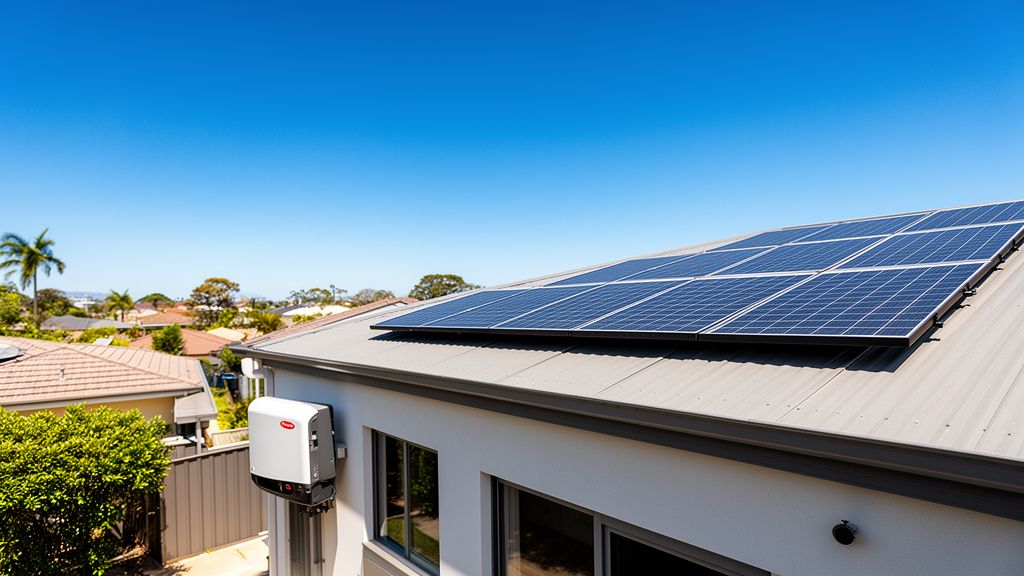
TL;DR: Most GEN24 Primo and Symo problems come down to three things: the inverter has lost the internet, you cannot get into the local interface, or you have forgotten a password. All three are fixable at home, except a technician password reset, which has to go through Fronius.
What Actions Should You Take When Your Fronius GEN24 Inverter Goes Offline?
An offline GEN24 inverter stops sending data to Solar.web, so you lose both your production figures and your fault alerts. A new router or any change to your home network will do it. Until the connection is back, a device failure can sit there unreported.
Reconfiguring Network Settings After a Router Change
Connect a laptop or phone to the inverter's own WLAN access point. That access point shuts itself off after 30 minutes, or when network settings change, so you may need to switch it back on at the inverter first.
If Windows asks for a PIN, choose the option to enter a network security key instead. The key is on the rating plate, usually on the side of the unit. Older inverters with nothing printed there use "12345678".
Once connected, open the user interface at 192.168.250.18 over WLAN, or 169.254.0.180 over Ethernet. Use the LAN1 port. LAN2 is inactive. From there you can enter your new network details.
Ensuring Solar.web Notifications are Active
Being online does not mean you will be told when something breaks. In Solar.web, go to Settings, then Service Messages, click Edit, and confirm "Receive service messages" is ticked. You can also set how long an outage runs before you are notified.
Then check Settings, Contacts. Your phone number needs the "Active" box ticked and your email address needs "Receive service messages" ticked. Get this wrong and a dead inverter can sit unnoticed for weeks, which is a real amount of lost generation.
How Do You Regain Access to Your Fronius GEN24 User Interface?
The local interface is where you check status and run diagnostics without Solar.web. Two things usually block it: the WLAN access point has timed out, or your browser is serving stale data.
Troubleshooting WLAN Connection and PIN Issues
Check your device is still on the inverter's access point. It drops after 30 minutes, when network settings change, and on some devices as soon as they notice there is no internet on that connection.
If prompted for a PIN, switch to entering the network security key from the rating plate, or "12345678" if the plate does not show one. Then load the interface again: the local IP from your router if you are on Ethernet through your home network, or the direct addresses above if you are connected to the inverter itself.
Clearing Browser Cache and Restarting the Inverter
A UI that freezes, renders wrong, or asks for a password you never set is almost always cached data. Close the interface, clear cache and cookies, and try again.
If that fails, restart the inverter properly. Turn off the AC at the circuit breaker first, then the DC isolator on the unit. Wait about 30 seconds until every LED is out and the inverter is fully dark. Bring the AC back first, then the DC.
Check the firmware version while you are in there. Old firmware causes a lot of odd behaviour that looks like hardware failure.
What Is the Process for Resetting a Forgotten Fronius GEN24 Password?
Customer and technician passwords reset differently. Both start by generating a PIN on the inverter, and both have a catch: the recovery key only works while that PIN is still on screen.
Resetting Your Customer Password via Solar.web
Click "Forgot password?" on the local interface to generate a PIN for the Customer role. In Solar.web, go to Settings, then Components, click Actions on your inverter's data source and choose "Reset Customer Password". Enter the PIN to get a recovery key, then set a new password.
Only the Solar.web system owner can do this. If the option is missing, your installer still owns the system and you will need them to either transfer ownership or run the reset.
Resetting the Technician Password for Specialised Personnel
The Technician role is for electricians and Fronius System Partners, and only Fronius Tech Support can issue that recovery key. In Australia that means your installer has to contact Fronius on your behalf. There is no homeowner path.
Watch the PIN. Five wrong entries or an inverter restart generates a fresh one and kills any key already issued against the old PIN.
Key Takeaways
- Check Solar.web Service Messages and Contacts are both active, or a failed inverter will not tell you it failed.
- The WLAN access point times out after 30 minutes. The security key is on the rating plate, or "12345678" on older units.
- Local interface addresses are 192.168.250.18 over WLAN and 169.254.0.180 over Ethernet, on LAN1 only.
- Clear browser cache first, then do a full AC-then-DC restart with a 30 second wait before deciding anything is broken.
- Customer passwords reset through Solar.web; technician passwords go through your installer and Fronius Tech Support.